🎚️ How to Create Font Variants
After creating a custom font, the next step is to generate font variants by uploading font files and selecting the corresponding font weight and font style for each uploaded file. The detailed steps are as follows:
🚀 Steps to Create Font Variants
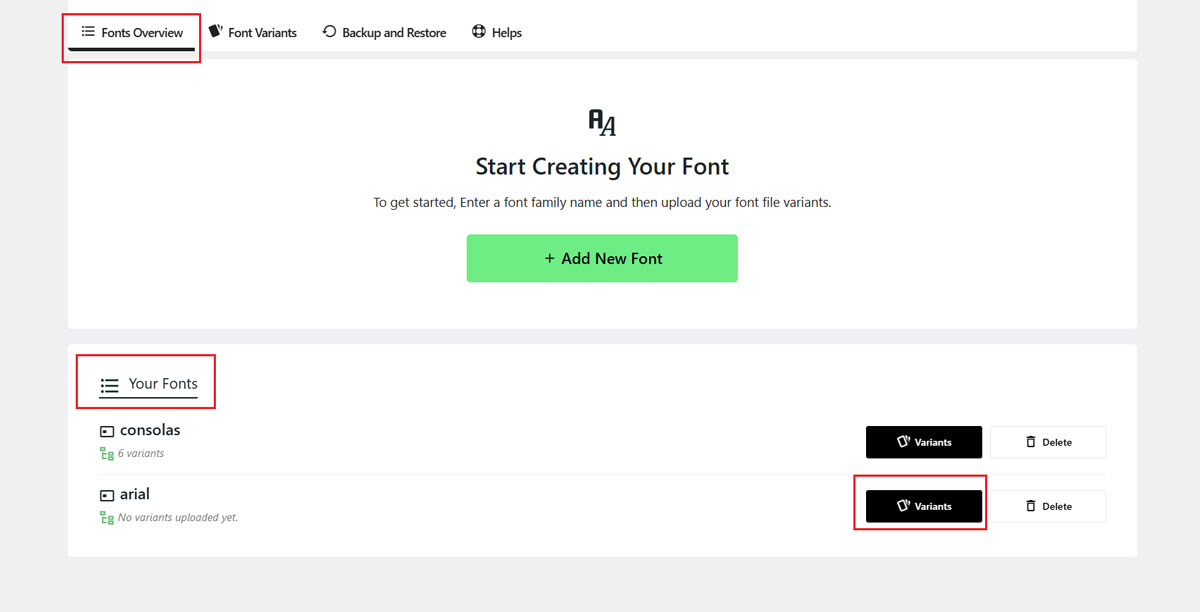
1. Open the Font Variants Interface
In the Fonts Overview tab, scroll to the Your Fonts section.
Click the Variants button next to the font you want to manage.
The interface will automatically switch to the Font Variants tab.
2. Upload a Font File
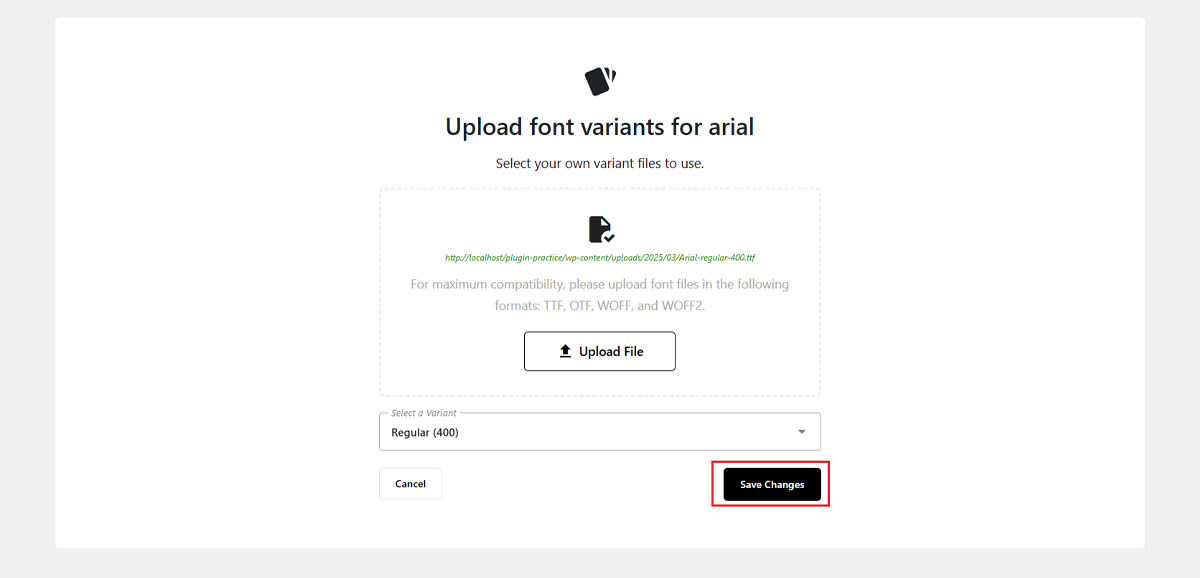
Click the Upload File button to upload your font file.
You can upload fonts in the following formats: .woff2, .woff, .ttf, or .otf.
Make sure your file is valid and matches one of the supported formats.

3. Select a Font Variant
In the Select a Variant section, choose the appropriate font weight and font style (e.g., Bold + Italic) for the uploaded file.
After selecting the variant, click Save Changes to add it to the font.
4. View Your Font Variant
Once saved, the new variant will appear at the bottom of the list under your font.
Each variant can only be assigned once, duplicate variants are not allowed.

Once a variant is selected, it will no longer appear in the variant selection list. Each font can have only one corresponding variant, meaning duplicate variants for the same font are not allowed.
📌 What’s Next?
Now that you’ve added font variants, you can:
- Upload additional formats for better browser compatibility (e.g.,
.woff2,.ttf) - Apply the custom font to your site using the CSS selector tool
- Assign the font to specific elements via your theme’s typography settings
🛠 Troubleshooting
- Make sure your font file is in a supported format (e.g.,
.woff2,.ttf) - Check that you haven’t already assigned the same variant to this font
- Refresh the page if the upload interface does not respond
- Ensure the Local Fonts Uploader plugin is activated and working correctly
Need help? Visit the FAQs or Contact Support