🎯 How to Apply Font Variants
After creating font variants, the next step is to apply them to specific HTML class names or tags so your custom fonts are actually used on your website.
🚀 Steps to Apply Font Variants
1. Open the CSS Selector Interface
In the Font Variants tab, locate the list of variants you’ve already created for a specific font.
Click the CSS Selector button next to the variant you want to assign.
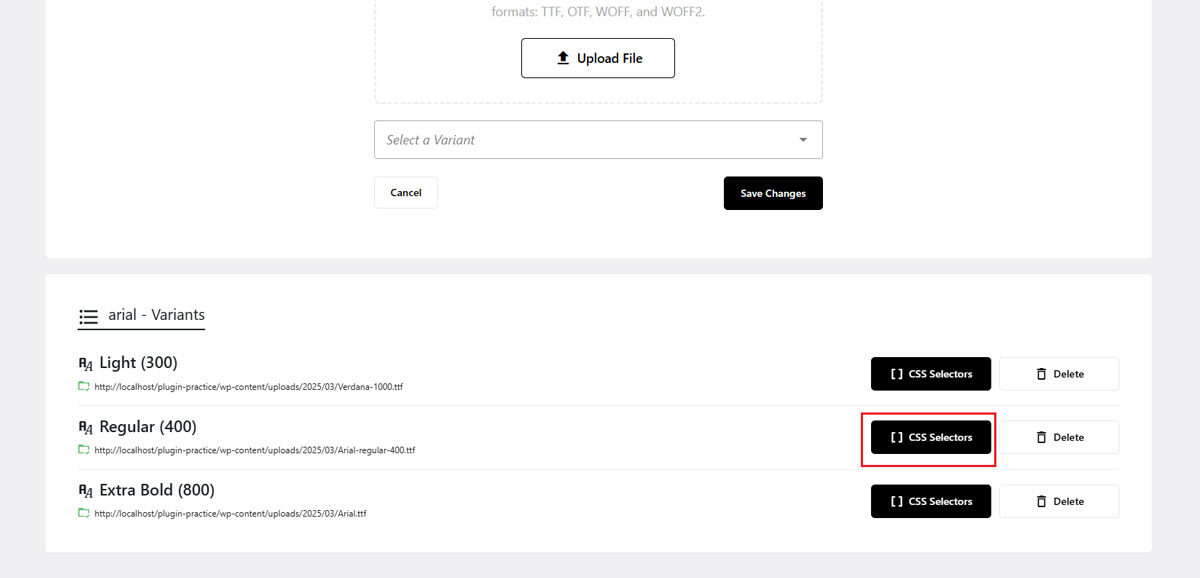
2. Enter HTML Class Names or Tags
An input form will appear. Here, you can enter the HTML class names (e.g., .custom-title) or HTML tags (e.g., h1, p) where this font variant should be applied.
- You can add multiple class names or tags, separated by commas.
- Do not include spaces in class/tag names.
- Class names must start with a dot (
.), while tag names should be written plainly.
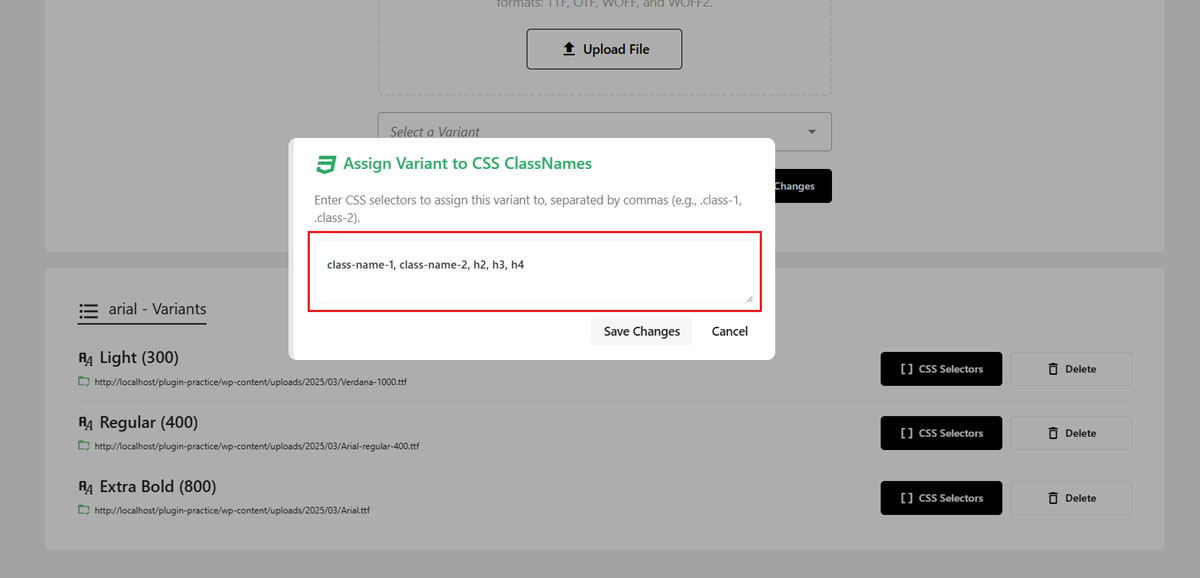
3. Save Your Settings
After entering the class names or tags, click the Save Changes button.
Your assigned selectors will now appear below the font variant, indicating they are active.
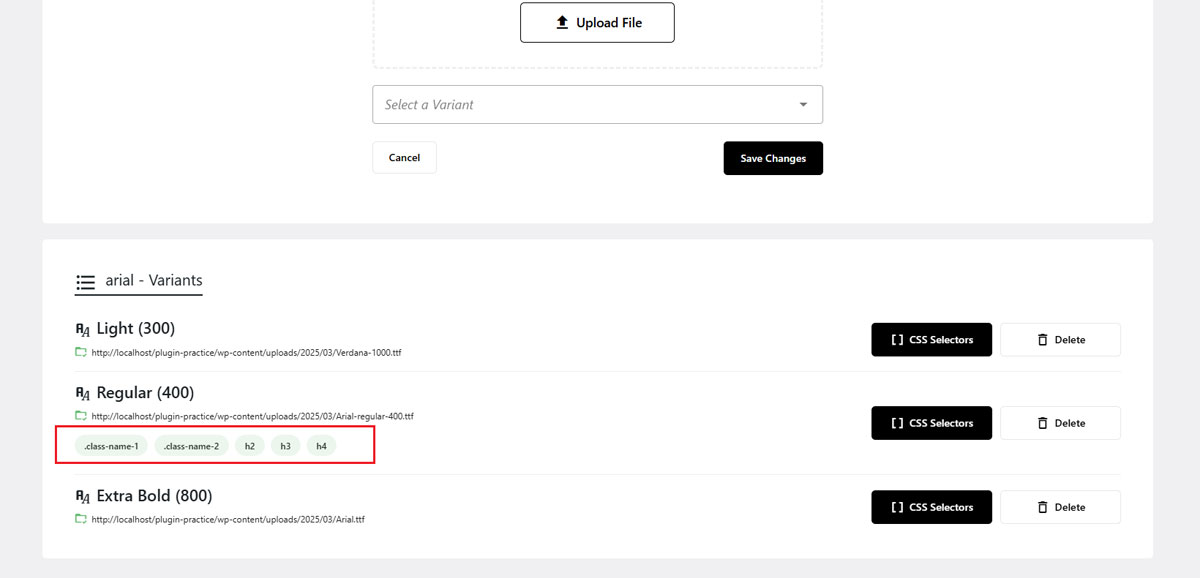
✅ Example Usage
Let’s say you entered:
.custom-heading, h2, .featured-paragraph
This means the selected font variant will be applied to:
- Any element with class
custom-heading - All
<h2>tags - Any element with class
featured-paragraph
No additional CSS is required, the plugin handles it for you.
- Class and tag names cannot contain spaces.
- Use commas (
,) to separate multiple entries. - Don’t forget the
.prefix when entering class names.
📌 What’s Next?
Now that your font variant is applied:
- Visit your site frontend to see the custom font in action
- Try applying different variants to different elements for a consistent typography system
- Continue fine-tuning by uploading additional font formats for better browser support
🛠 Troubleshooting
- Make sure you’ve created and saved at least one font variant
- Double-check your class names or tags for typos
- Avoid using IDs (
#id), only classes and tags are supported - If changes don't appear, try clearing your cache or reloading the page
Need help? Visit the FAQs or Contact Support