🖋️ How to Add a Custom Font
This guide will walk you through creating a custom font using the Local Fonts Uploader plugin.
You’ll only need a working WordPress site with the plugin installed and activated.
🚀 Steps to Add a Custom Font
1. Open the Add New Font Panel
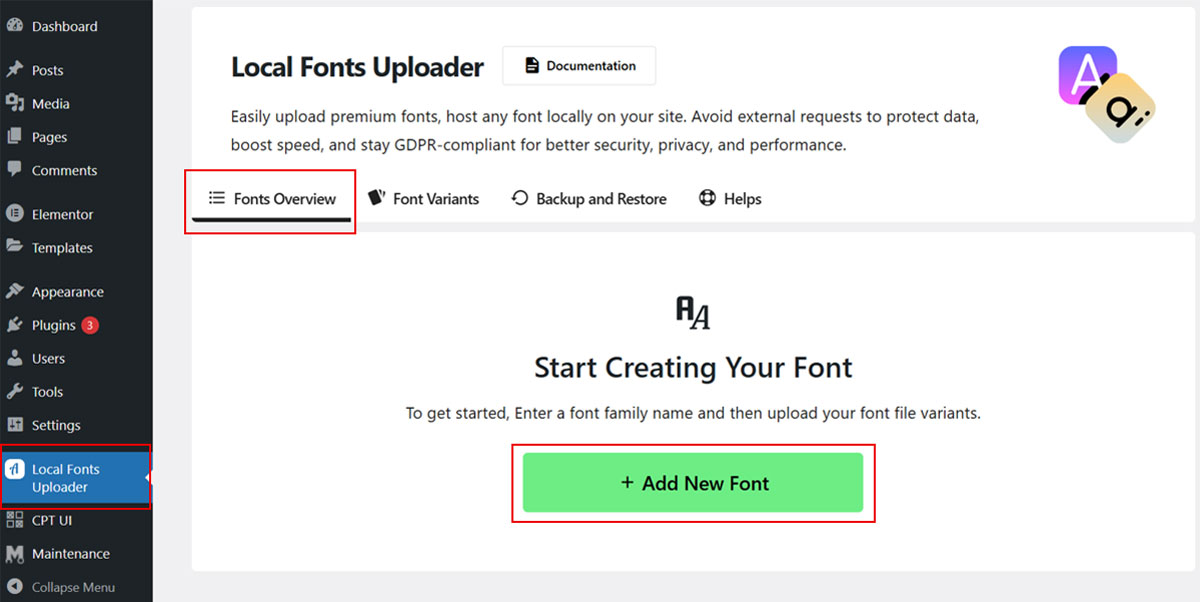
In your WordPress dashboard, you will see Local Fonts Uploader from the sidebar menu.
This opens the Local Fonts Uploader Admin interface.
Click the Fonts Overview tab at the top of the interface.
This is where you’ll create abd manage all your uploaded fonts.
2. Add a Custom Font
Press the Add New Font button to begin creating a new custom font.
A field will appear where you can enter the font name.

Type in a name for your custom font in the input field, then click Save New Font.
3. View Your New Font
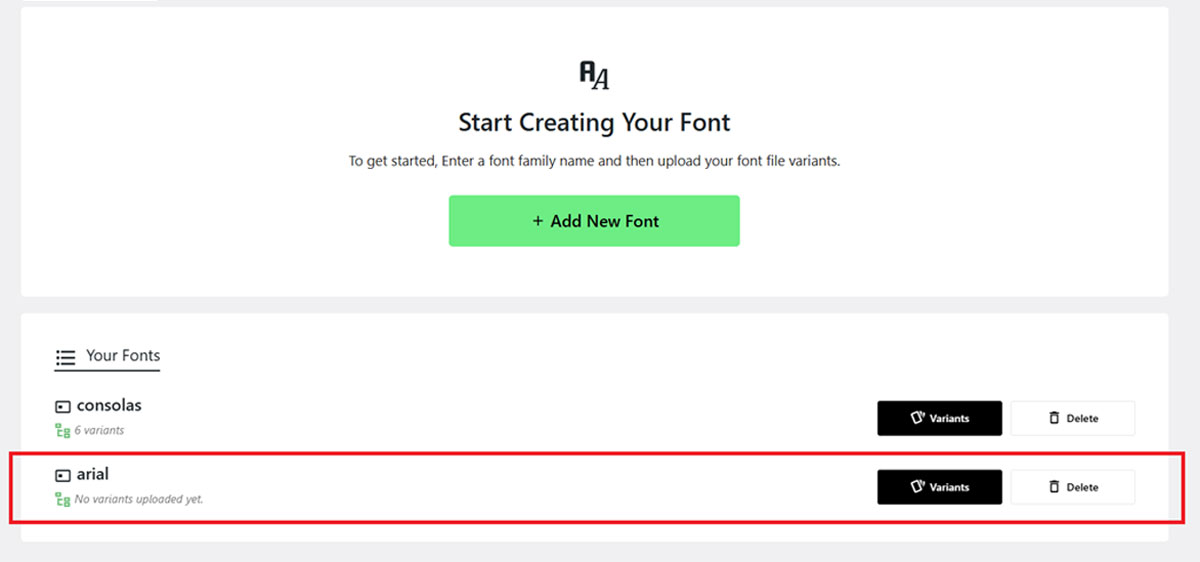
Your custom font will now appear in the Your Fonts list.
You can manage, edit, or delete the font from here.
📌 What’s Next?
Now that you’ve added a font, you can:
- Upload font files in various formats (e.g.,
.woff2,.ttf) - Assign the font to specific HTML elements or classes
- Use the font across your site for a consistent design
🛠 Troubleshooting
- Make sure the Local Fonts Uploader plugin is installed and activated
- Ensure your WordPress theme allows custom fonts
- Refresh the page if the interface doesn’t load properly
Need help? Check out the FAQs or Contact Support