💾 Backup and Restore Font Settings
The Backup and Restore feature allows you to save and restore your custom fonts, font variants, and applied class name settings.
This is especially useful to prevent data loss, or when you want to transfer settings to a new device or another WordPress site.
🔄 Backup Data
To back up your current configuration, follow these steps:
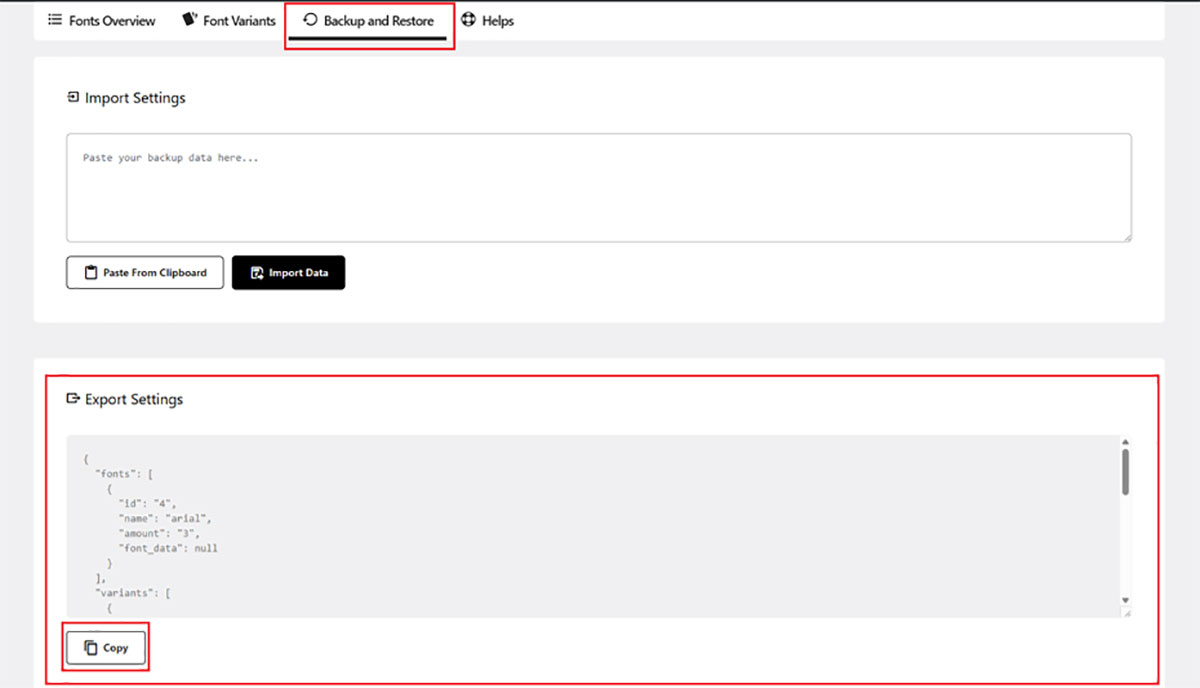
- Go to the Backup and Restore tab in the plugin interface.
- Scroll down to the Export Settings section.
- Click the Copy button to copy all font data, variants, and class name assignments.
Paste the copied data into a safe location. For example, a .txt file or secure notes app.
This data can be reused later to restore your exact configuration.
♻️ Restore Data
To restore a previous configuration:
- Copy the backup data you saved earlier.
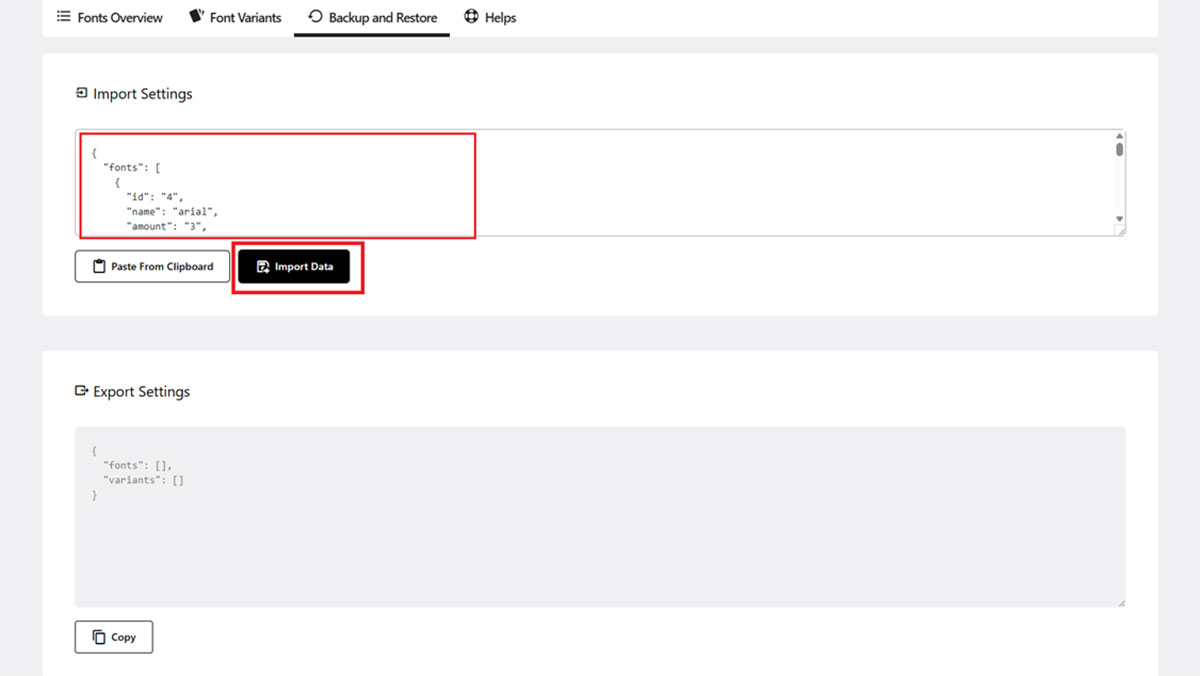
- Go to the Backup and Restore tab.
- Under the Import Settings section, click the Paste From Clipboard button.
(Make sure the data has been copied beforehand.) - The data will be pasted automatically into the import field.
- Click the Import Data button.
After the success message appears, your fonts and settings will be restored.
✅ Tips
- Always back up your settings before updating or removing the plugin.
- Keep multiple backup versions if you work across different projects or environments.
- Use the same backup data to clone settings across multiple WordPress websites.
🛠 Troubleshooting
- Make sure you copied all of the exported data without missing characters.
- Avoid adding extra spaces or line breaks when pasting the data.
- If restore fails, try refreshing the plugin page and retrying the import process.
Need help? Check out the FAQs or Contact Support